 Zenithgram
 tutorials for real estate agents
Short videos, about a minute each, that show how to set up Zenithgram: connect your accounts, set your brand, approve your posts and schedule them. Every video also has the steps and the full transcript written out below it.
Create your account and set up your videos
Start here if you have just signed up, and come back for the video settings.
 1:43Create your account and complete the setupSign up for Zenithgram, confirm your email, and answer the nine short setup steps, from About you to your free trial. Takes under two minutes.
 0:57Start your free trial: the last step of setupThe last step of Zenithgram setup: accept the terms, add a card on Stripe's secure page for the 15-day Pro trial, then Submit for review. About a minute.
 1:05Choose your on-camera look and voiceVideo posts use an AI avatar of you, made in HeyGen. Open Settings, then Video, and choose your avatar, your look and the voice that narrates your videos.
Getting started: a four-part series
Watch these in order the first time you sign in.
 1:01Part 1: Get connectedSign in to Zenithgram, check your Buffer and HeyGen keys say Connected, and see your Facebook, Instagram and YouTube channels turn green. About a minute.
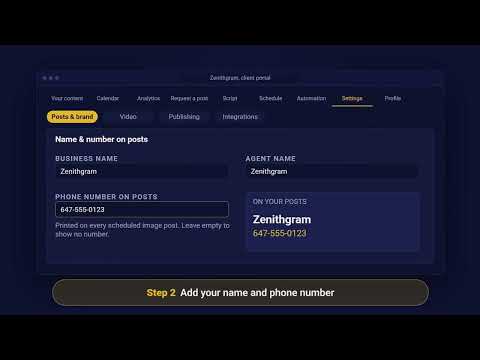 0:59Part 2: Your brand and post settingsSet your name and phone number, add your logo if you have one, choose what shows on your posts, and pick your brand colours and photos in Zenithgram.
 1:00Part 3: Request a post and approve itAsk for an image or carousel post, find it under Needs review, pick a date and approve it. Regenerate or disapprove posts that aren't right.
 1:02Part 4: Schedule and automationSee what's coming up on the Calendar, choose your posting days and time, pause or resume everything, and pick Review first or Auto-publish in Zenithgram.
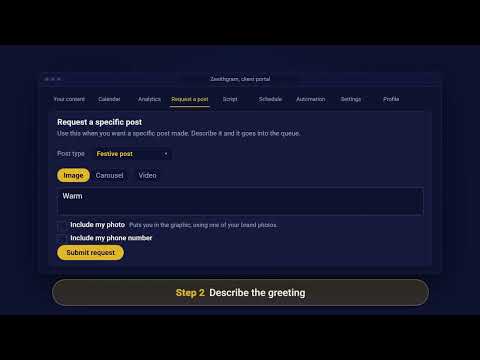 0:49Bonus: Festive posts for the holidaysMake a festive greeting post for a holiday: choose Image, set Post type to Festive post, describe the greeting, add your photo and approve it.
 0:46Bonus: Request a videoRequest a video post: choose Video, describe the topic, approve the script we email you, then approve the finished video under Needs review.
Get your API keys
Zenithgram posts through your Buffer account and makes your videos in your HeyGen account. These videos show how to create the key for each.
 1:19How to get your HeyGen API keyCreate a HeyGen API key in HeyGen for Developers: open API keys, press Create API key, choose Full access, copy it, and paste it into Zenithgram.
 1:12How to get your Buffer API keyCreate a Buffer API key: open Settings, then API, press New Key on Personal Access, choose an expiry, copy it, and paste it into Zenithgram.
Ready to start?
Create your account, confirm your email, and answer a few questions about your business. We check everything and set up your posts.
Create your accountAlready have an account? Sign in.